There are two approaches in PVsell for you. You can use the 'PVwatts' solar production model and add as many array aspects as you like.
Or you may prefer the speed of simply choosing the tilt and orientation of an array, without having to select the panels and draw on a roof. In this case, the 'SAM (legacy)' solar production model is the best option.
Take advantage of the awesome roof layout functionality using the 'Roof Layout' array definition with the ability to add more than three array aspects (orientation/tilt combinations), have panels face south and anywhere from 0-90 degrees tilt, and more fine tuning over the performance model. Learn more:
This mode uses the 'PVwatts' performance model.
2.1. Open your project's 'Site' tab

2.2. Select the 'Azimuth & Tilt' array definition

2.3. Select your performance model: PVwatts or SAM (legacy)

2.4. Specify the proportion of the array that faces in the original direction
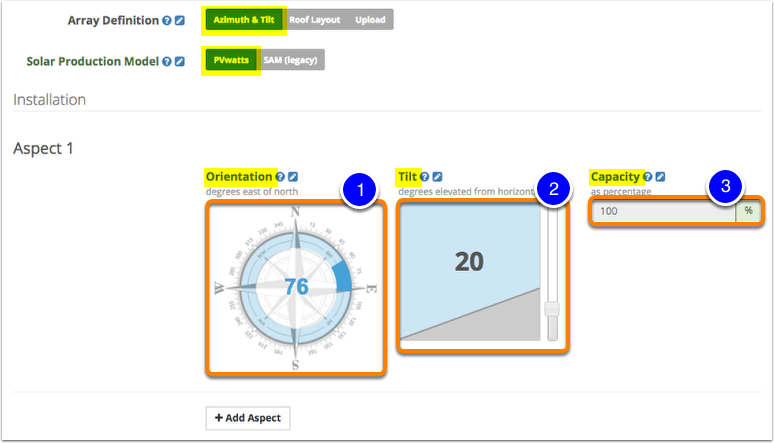
2.4.1.1. Specify the Orientation (in degrees east of north)
This is which direction the solar panels for this aspect are facing. This should be entered in degrees east of north as a positive value using one of the following ways at your convenience:
- select the azimuth by clicking in the corresponding area of the compass rose,
- or simply enter the necessary value in the field that appears as you click the default value at the centre of the compass (and then click anywhere outside the compass)
2.4.1.2. Specify the Tilt of the array (in degrees elevated from horizontal)
This is the tilt for the panels in the aspect you are working in (e.g., 25 degrees incline). This should be entered in degrees elevated from horizontal using one of the following ways:
- drag the toggle button up/down to adjust the tilt value,
- or simply enter the necessary value in the field that appears as you click the default value at the centre of the pitch diagram (and then click anywhere outside the diagram)
2.4.1.3. Enter Capacity (as a percentage)
This is the capacity for each aspect as measured against the total system capacity. E.g. if you only have 1 aspect, this would be 100%. If you have half the system on this aspect and the other half on another aspect, this would be 50%.
2.4.2.1. Enter the Orientation (in degrees east of north)
This is which direction the solar panels for this aspect are facing. It should be entered in degrees east of north as a positive value from the drop-down box.
2.4.2.2. Specify the Tilt of the array (in degrees elevated from horizontal)
This is the tilt for the panels in the aspect you are working in (e.g., 25 degrees incline).
2.4.2.3. Enter Capacity (as a percentage)
This is the capacity for this aspect as measured against the total system capacity. E.g. if you only have one aspect, this would be 100%. If you have half the system on this aspect and the other half on another aspect, this would be 50%.

2.5.1. Click on '+Add Aspect'

2.5.2. Enter the aspect of the second array
See Step 2.4 for more details on specifying these parameters.
for PVwatts

for SAM (legacy)

2.5.3. Repeat the process to add another sub-array if necessary (by clicking '+Add Aspect' again)
Or click '– Remove Aspect' to the right of an unnecessary aspect to remove it.
The proportion of the array is auto-calculated for the final aspect entered.
If you update your system size, you may wish to review the aspects to ensure the proportions are still correct.
0 Comments