1. Generating an API key for use in PVsell
Before you begin please note that there are two components to the Nearmap API Key authentication:
- API Applications – allow you to organise your Nearmap integrations into other software(s) and allows you to set various access restrictions for each integration. There are no restrictions to the amount of API application integrations you require. You must be a Nearmap administrator to create and manage API Applications.
- Every user of a Nearmap account can create one API Key per API application on the account. Usage accrued by an integration that uses an API Key will be recorded against the account holder that is hosting the API key.
To begin the process:
1.1. Log in to your Nearmap account as a Nearmap administrator
You must first log in to your Nearmap account – https://admin.nearmap.com/welcome as a Nearmap administrator.
If you're not an administrator on your Nearmap account, then you won't be able to proceed. Please ask your Nearmap administrator to perform the actions described in this help article on your behalf.
(Its possible that your Nearmap account admin has already set up an API Application. In that case, skip until step 1.8)
1.2. Once logged in, click on the 'API Access' tab at the top of the screen
If you can’t see the API Access tab, it is possible you don’t have Nearmap admin access.

1.3. Click the 'Create New' button

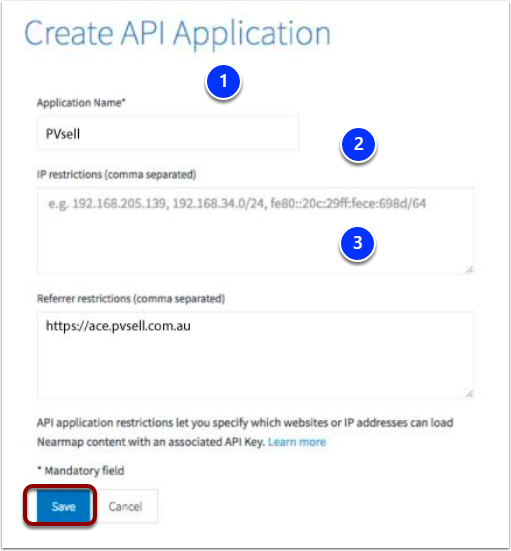
1.4. Once the Create API Application screen has loaded:
- Input 'PVsell' as the Application Name
- IP restrictions can be skipped
- For the Referrer restrictions you need to input the URL https://ace.pvsell.com.au
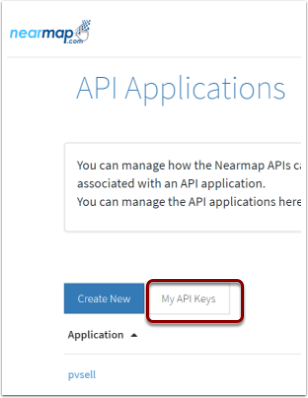
1.6. Click 'My API Keys'
1.7. Choose PVsell from the drop-down list, then click on the 'Create API Key' button
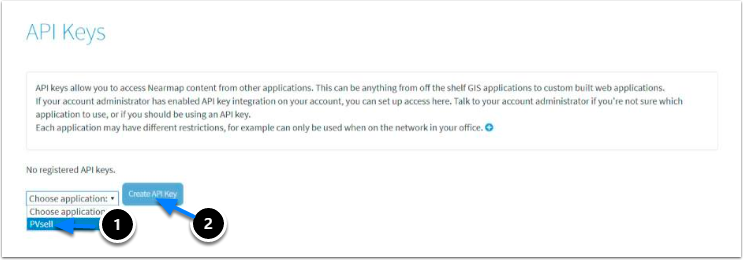
1.8. When the screen reloads, you will see an API Key that is required to be input into PVsell

Note that the Nearmap data usage will accrue to the Nearmap account holder who created the API key. If you're keen to separately track Nearmap usage within the PVsell app, then we suggest you create a dummy PVsell user within your Nearmap account, then log into Nearmap as that user, then create the API key from within that user's account.
1.9. Click the Copy icon to save the API Key

2. Adding your API Key to PVsell
The API Application and creating an API Key are required to be performed from within your existing Nearmap account, as described above in Generating an API key for use in PVsell. Once these steps have been performed you can now apply your API Key to your PVsell account by following these steps.
You'll also need to have account administration privileges within PVsell. If you're a sales manager or salesperson, then you'll need to ask your PVsell account administrator to enter your API key into PVsell, or contact PVsell support.
2.1. Log in to PVsell
Log in to your PVsell account https://ace.pvsell.com.au/.
2.2. Click on your company name in the top-right hand corner of PVsell

2.3. From the drop-down menu select the 'Admin' option

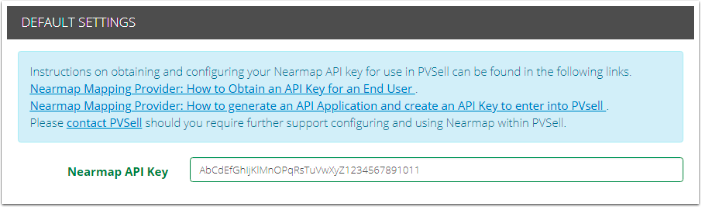
2.4. In the Default Setting section, paste the API Key that you generated under your Nearmap account into the 'Nearmap API Key' field
0 Comments