Proposal pages in PVsell are organised simply and neatly. There are three drives the Proposal Templates are stored in:
- 'PVsell Templates' is a drive where the templates provided by PVsell are stored;
these templates can be used by anyone - your 'Company Drive' is shared with everyone in your company;
this is a space for proposals that all users in your company can access - and the 'My Drive' section is user-specific;
this is a space to store your Proposals.
To make your proposal template available to your colleagues/company, copy the template to your "Company Drive".
This article describes how you can share an existing Proposal Template with your company.
You can also make a proposal template available to your colleagues while creating your proposal. Just save it as a template straight to your "Company Drive". How do I save my proposal to my Proposal Drive as a template I can reuse?
1. Click on the Libraries icon in the main menu (side menu on the left)

2. Open the 'Proposals' tab

3. Select the Drive where the necessary Proposal Template is stored
Most likely, it's going to be the 'My Drive' (which is selected by default) or 'PVsell Templates'.
Remember any proposals in the "PVSell Templates" drive are already available to your colleagues, so you don't need to do anything special to share them with your team, though you may still wish to add some of them to your 'Company Drive' in order to draw your colleagues' attention to certain templates and/or to always have them ready at hand.

4. Click the Edit icon next to the Proposal Template you wish to make available to your company

You may wish to keep two versions of this Proposal Template – one in your personal library ('My Drive'), and another one in your company's library ('Company Drive'). To do so, you can first click the Duplicate icon next to the Proposal Template you wish to move to your 'Company Drive', and then click the Edit icon to move one of the duplicates.

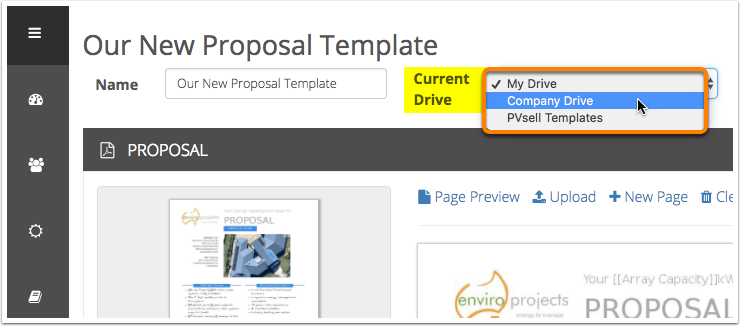
5. From the 'Current Drive' dropdown, select 'Company Drive'
6. At the bottom of the page, click 'Save and return to Library'
Or you can click 'Save and Edit' first if you wish to modify this template in your 'Company Drive' right away, and save the modified version later.

If you wish to make more templates available to your colleagues, repeat these steps beginning with Step 3.
Learn how you can add certain template pages from one Proposal Template to another:
0 Comments