Never upload your meter data blindly - always check the accepted format before proceeding. In some meter data files you'll have to make some minor adjustments before uploading.
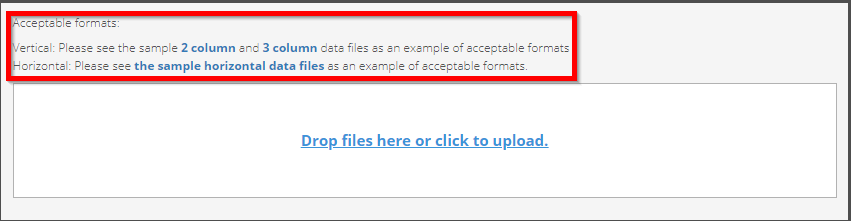
If the file is in an acceptable format, follow the steps below. View the acceptable format in the upload screen.
1. Choose the Upload Meter Data option on your main screen
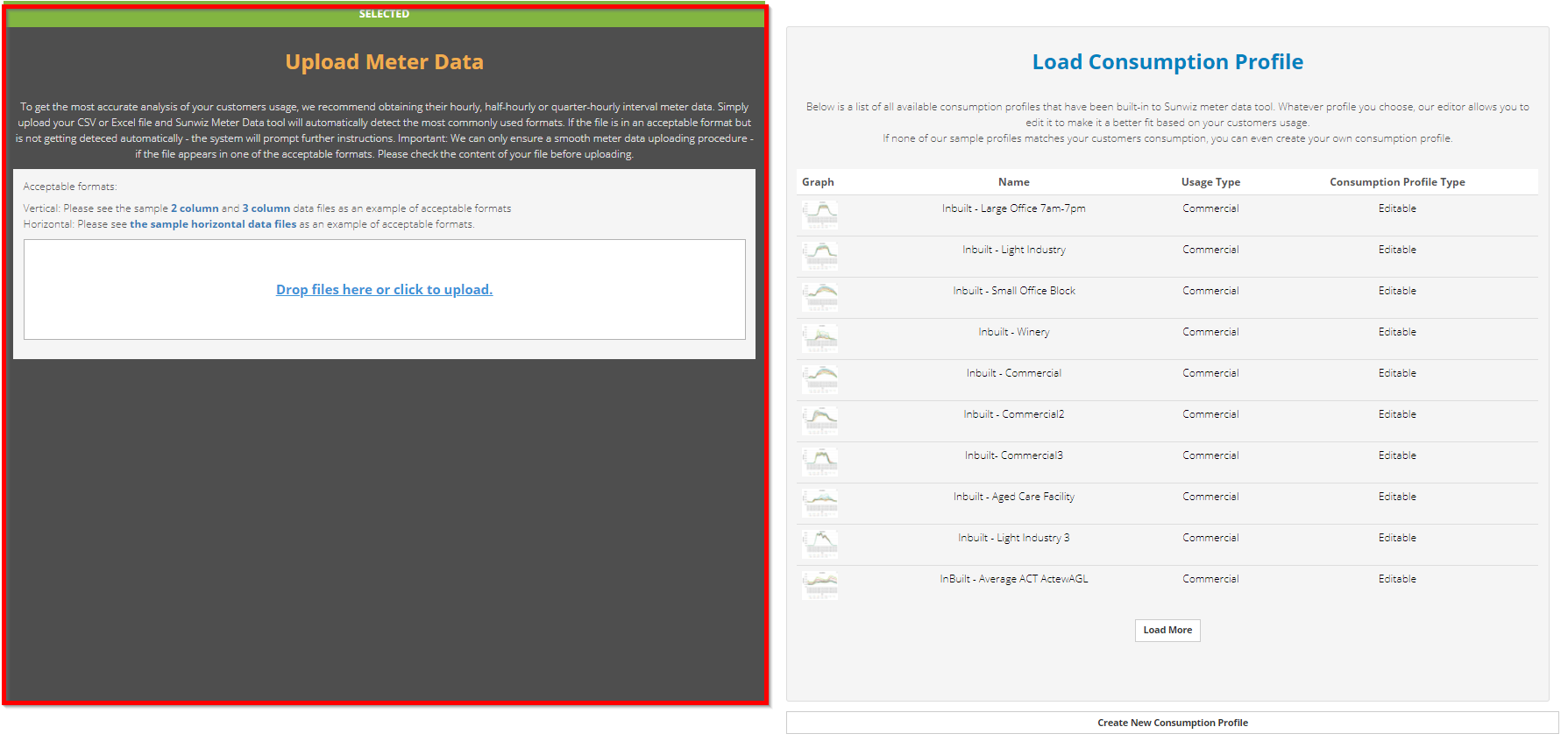
2. Upload csv or excel file
Drag and drop your interval meter data file into the drop zone or click the upload link and select the file you wish you upload.

Wait for the file upload process to complete. This may take a while for large excel files of a few MB. Therefore we recommend to keep only the required data information in your file and delete the not required data before uploading.

3. Auto-detection & manual format assignment
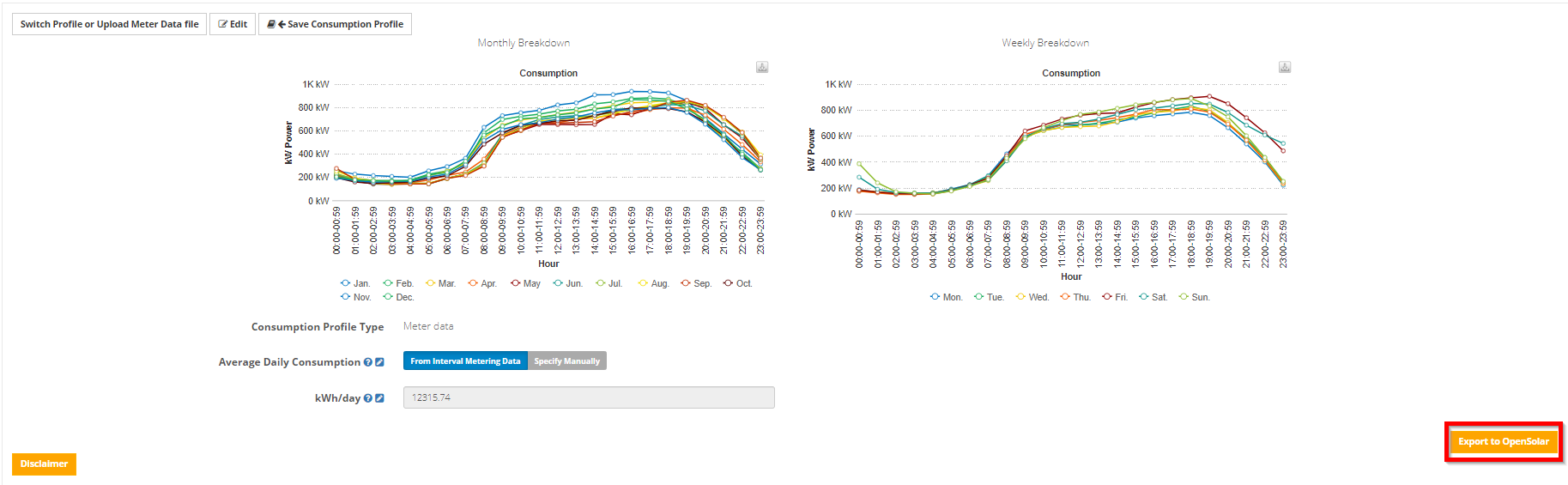
Sunwiz meter data converter can handle interval metering data both in horizontal and vertical formats. While uploading your customers meter data - our tool scans the header of your file for keywords and tries to recognize the structure of the file automatically. When your file gets detected automatically - no further action is required.
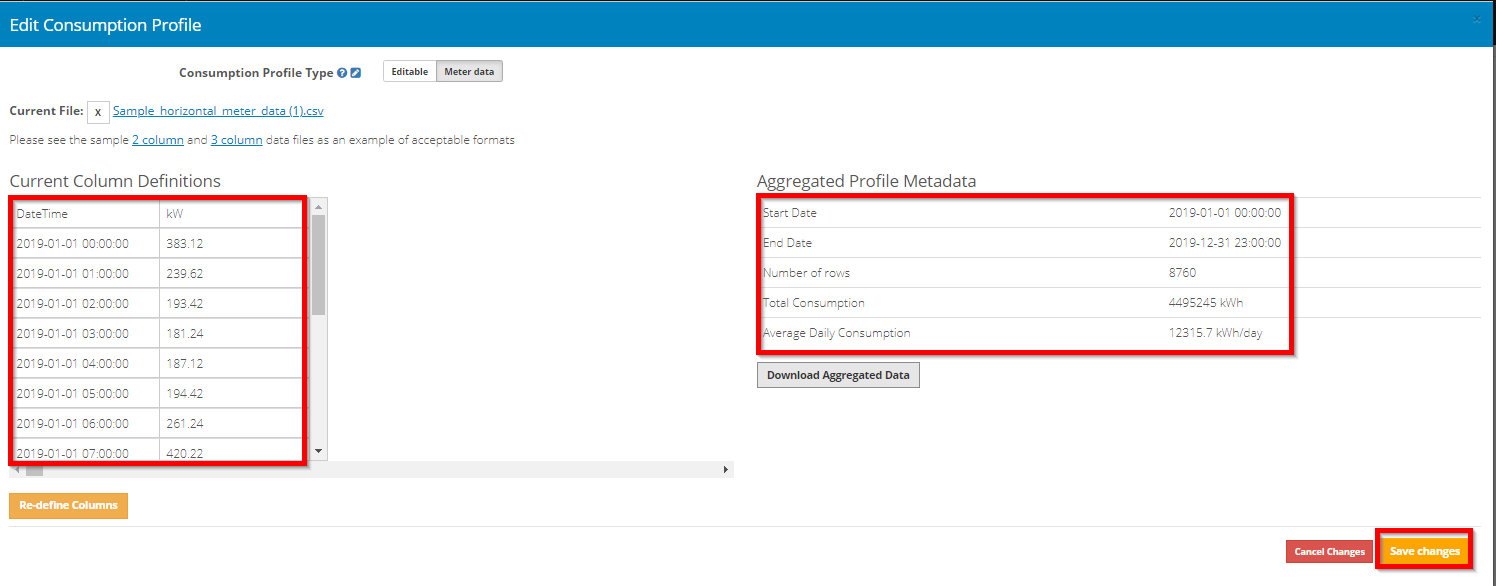
It automatically shows a preview of the consumption curve and the average daily consumption for your convenience. The average daily consumption should match the consumption value on your customers bills. You can now proceed by exporting the values in 8760 csv format to your OpenSolar project.
If our tool can not auto detect the file - manual assignments are required. Firstly determine the format of your file and select accordingly. If you struggle to determine the accurate format - check our sample format files on the very top of this article or check the help article above.
3.1. Vertical Format
If you see the screen below - select the file format accordingly and proceed with the instructions given in the yellow box below. We recommend to delete not required data from this file before uploading - this simplifies the manual assignment of columns dramatically.

Box instructions
1. Identify the date column and the time column. If date and time are combined in one column in your data file, then identify that column as the DateTime column.

2. Identify one column that holds the consumption data – whether the data is in kW or kWh.

3. Click Set Columns - the tool will run an algorithm and confirm the assignment.

If the check failed and the tool couldn't determine the expected parameters - you'll receive a warning message. In this case - either re-assign the columns following the instructions in the yellow box or use our IMD upload assistance. You can find the meter data assistance in the header of the tool.
3.2. Horizontal Format

Box instructions
1. Identify the Time increment

2. Select the Power Units (typically kWh)

3. Click Date above the column containing the dates
Pay attention to select only one Date column. If you accidentally select multiple ones - the algorithm won't let you proceed and set column won't appear in orange. Revert to N/A if you selected a second date column.

4. Click the first data point value of the file (energy reading)
By clicking the cell, select the first kW/kWh value - this is important so the system understand where to start grabbing the data from. Otherwise the algorithm won't let you proceed.

5. Click Set Columns the tool will run an algorithm and confirm the assignment.

If the check failed and the tool couldn't determine the expected parameters - you'll receive a warning message. In this case - either re-assign the columns following the instructions in the yellow box or use our IMD upload assistance. You can find the meter data assistance in the header of the tool.
4. Done! Push the data to your OpenSolar project
5. Potential error messages
"Not enough data, please make sure you have a full year"
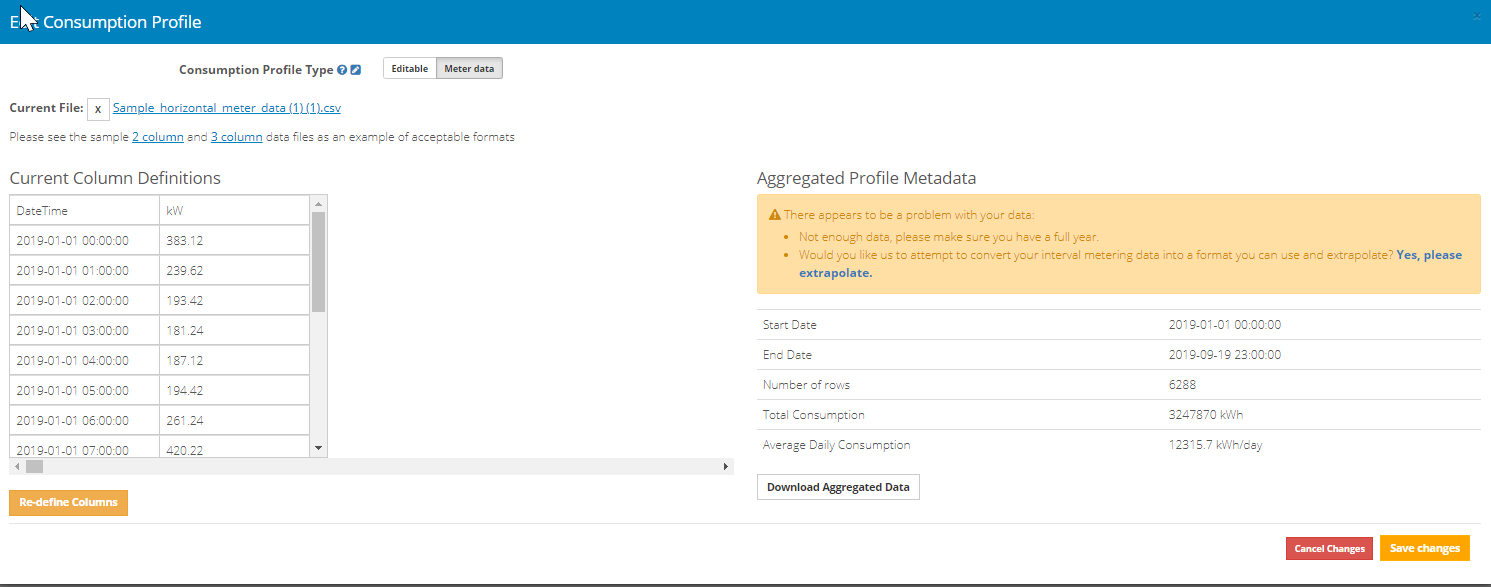
Please see our article below:
"We couldn't find the expected content in the columns you've assigned. Please retry or use our Upload IMD service"
Either manually re-assign your columns - If you require personal assistance while uploading your meter data -please use our  service. You find it on the top left corner of the header.
0 Comments