Here's a detailed step by step description describing how that all works.
1. Upload and format your interval metering data in the usual way
Upload and format your customer's part-year interval metering data file in the usual way.

2. You'll be warned that a part-year file has been detected
Our tool will serve that message only if a part year file has been uploaded. This warning provides you straight with the solution - to extrapolate the data.

If you ignore this message and don't extrapolate before proceeding - you'll be able to proceed to the next step via Save Changes - however the missing month will only appear as a flat line as no data has been provides. If you now try to push this data to OpenSolar via Export to OpenSolar - you'll get blocked from doing so and another error message will appear. This is to protect you from sending inaccurate data over to the Solar App - resulting in inaccurate calculation. Even if your customers consumption really appears to be 0 for several month of the year (e.g. irrigation pumps, ...) - please proceed with the extrapolation and ensure at least any data has been served to every month of the year. The data points can be 0 - as long as any data has been served.
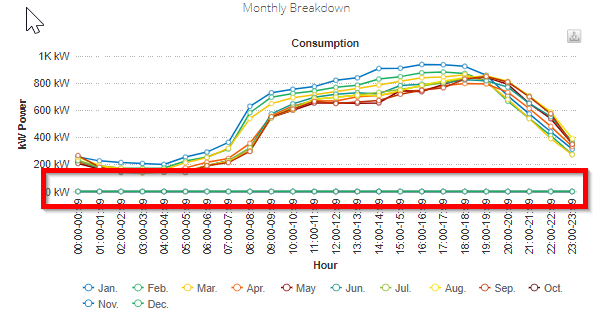
3. Click the Yes, please extrapolate text within the warning

This will convert the intended interval metering data consumption profile into an editable consumption data format by averaging the consumption on weekdays/weekends respectively, for each month where data is available.
4. Fill in the data for missing months
This is a critical step. If you don't fill in the missing months, then your ROI calculation will only be based on a part-years worth of results, under-selling your project potentials dramatically. You'll then need to manually fill in the data for missing months.
You can specify the information directly in your browser using a spreadsheet-like interface. Here you can edit each individual cell of the table until every month contains some data for both - trading and non-trading days.
- edit individual data points,
- copy and paste values from existing month
- fill across or fill down (You can extend data by selecting the corner of a selected cell and dragging it across or down)

1. Click on the month which contains data on the very top to highlight the whole column
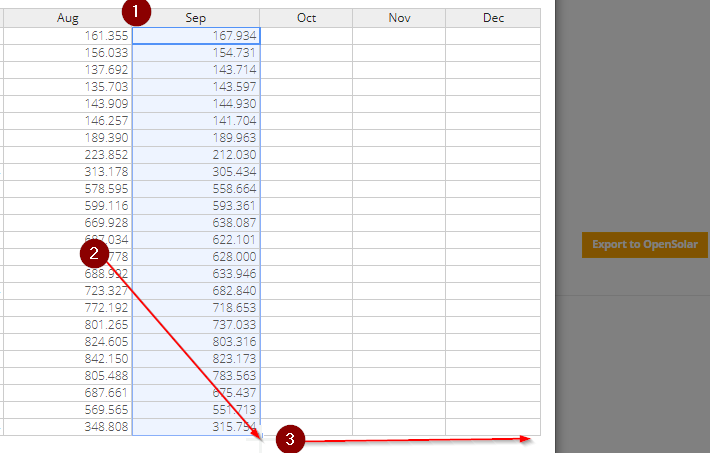
5. After editing the data, click Save changes

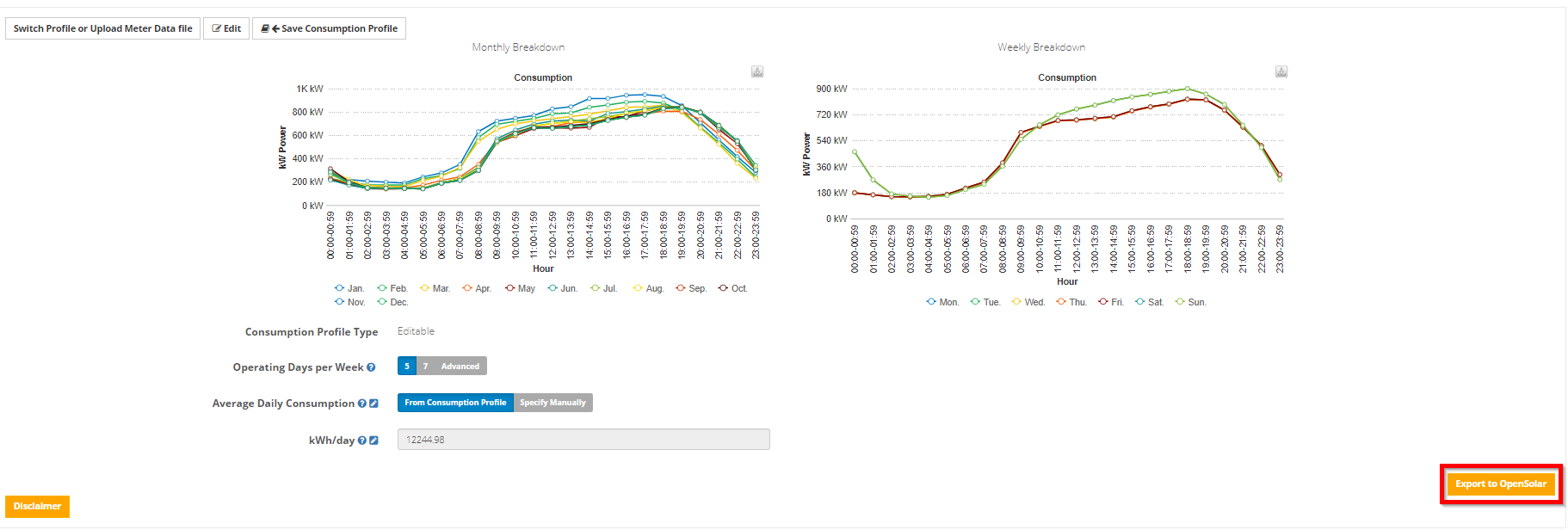
6. Done! Push the data to your OpenSolar project
Just press the Export to OpenSolar button on the bottom right
0 Comments