We'll show here how to edit the consumption profiles that already exist in your library.
If you wish to create a new consumption profile rather than modify the ones you have in the library, learn how to add a consumption profile to your library.
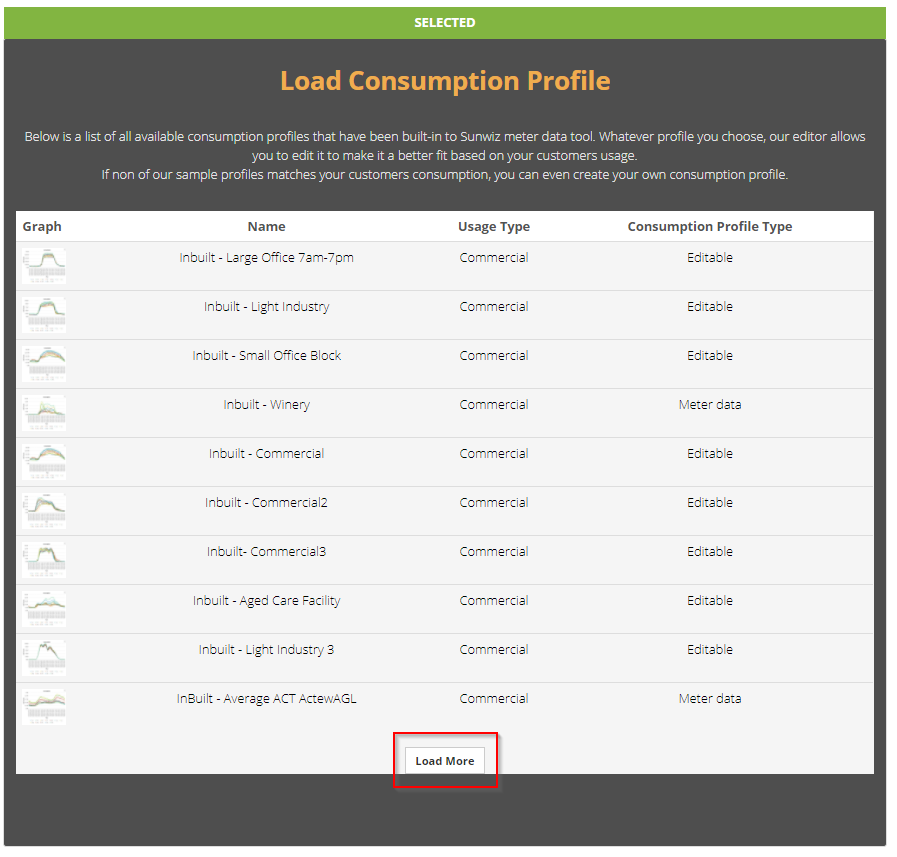
1. Open the consumption profile library by pressing "Load More"
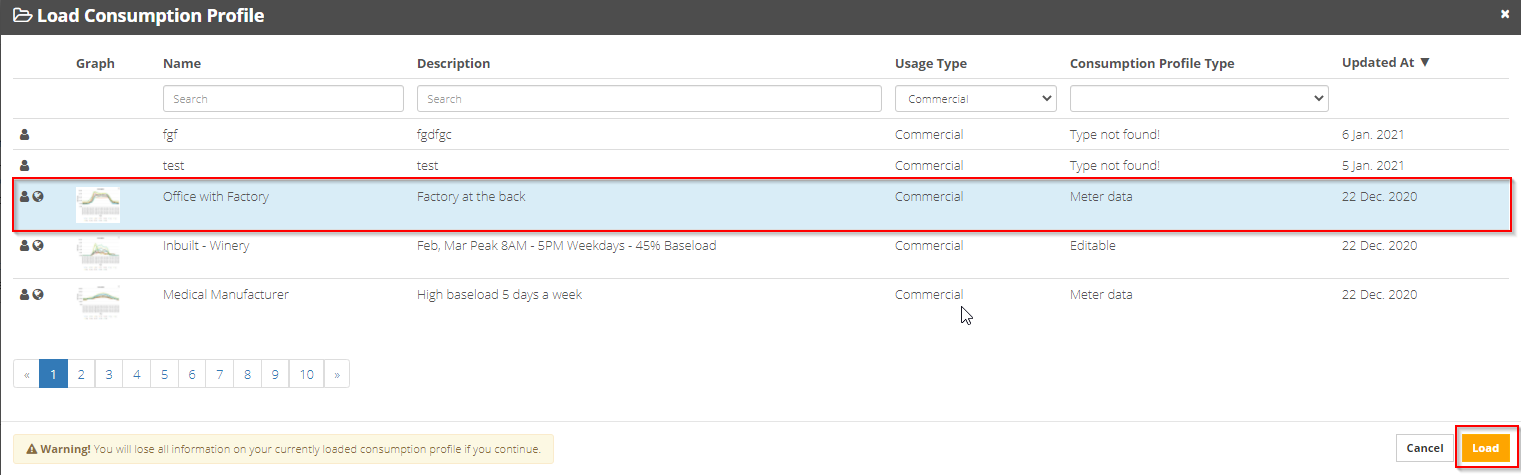
2. From the "Load Consumption Profiles" tab, load the profile you wish to edit.
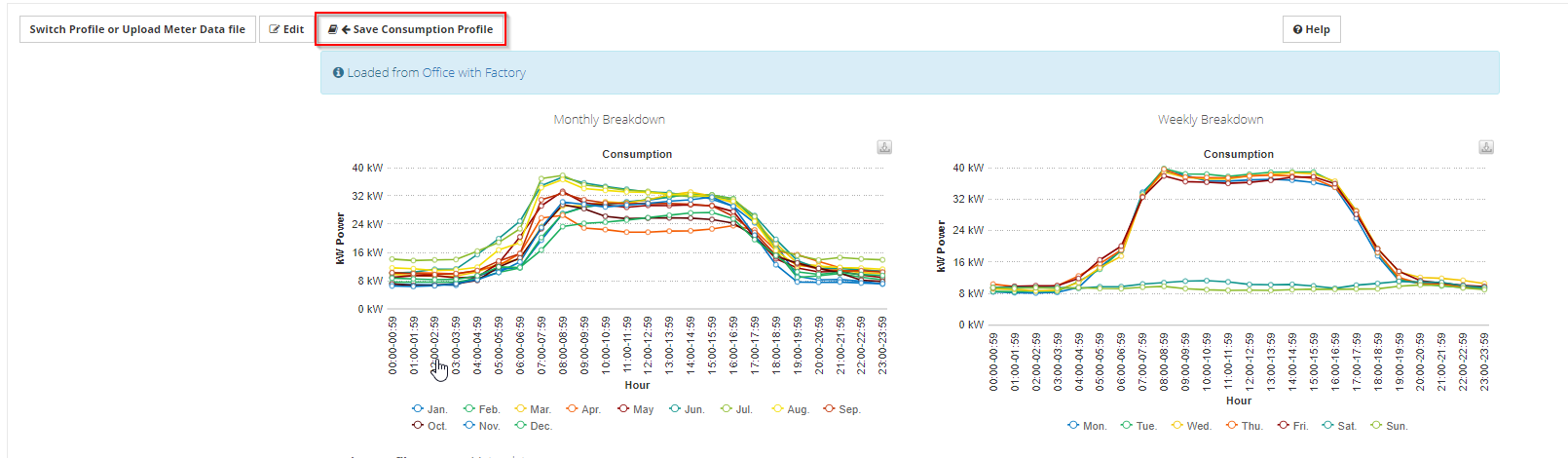
If you wish to keep both versions (the current version you have in the library and the modified one you will have after editing the profile), you can first click "save consumption profile" in order to duplicate the current profile.
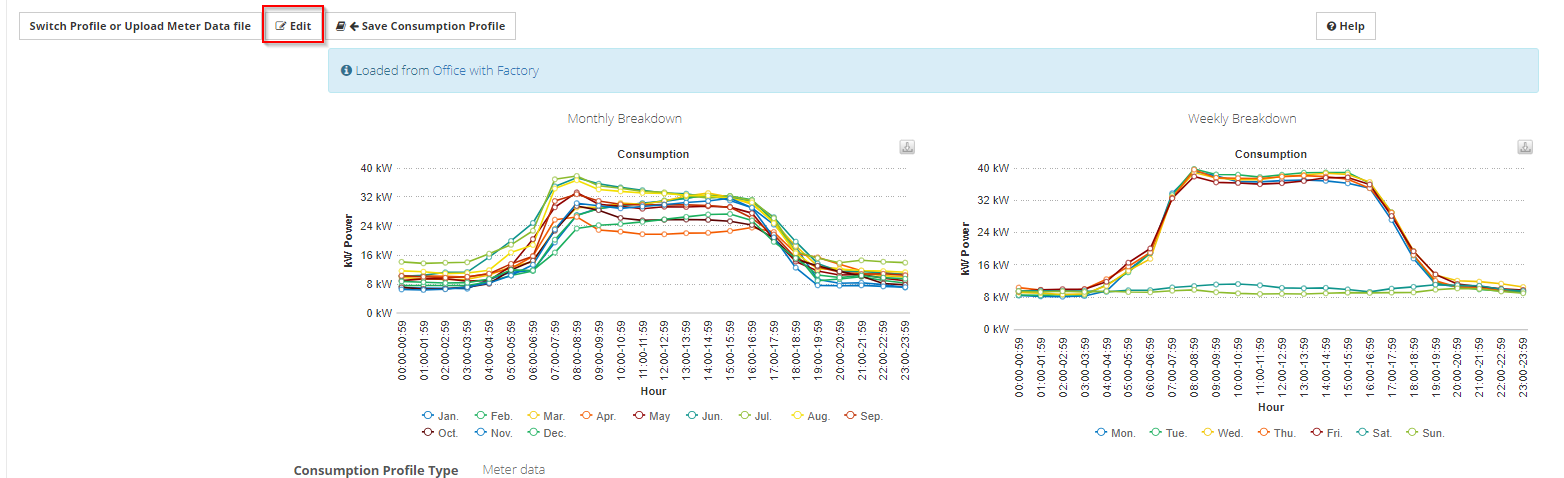
3. Edit the consumption data
Simply press "Edit" to be able to adjust the data.
For more detailed information on how to edit a consumption profile and different editing methods - check out:
- How can I fine-tune a working/non-working consumption profile to my customer's consumption patterns?
4. Done! Time to use your updated profile
After editing the trading/non-trading data in the Edit Consumption Profile window, click Save changes.

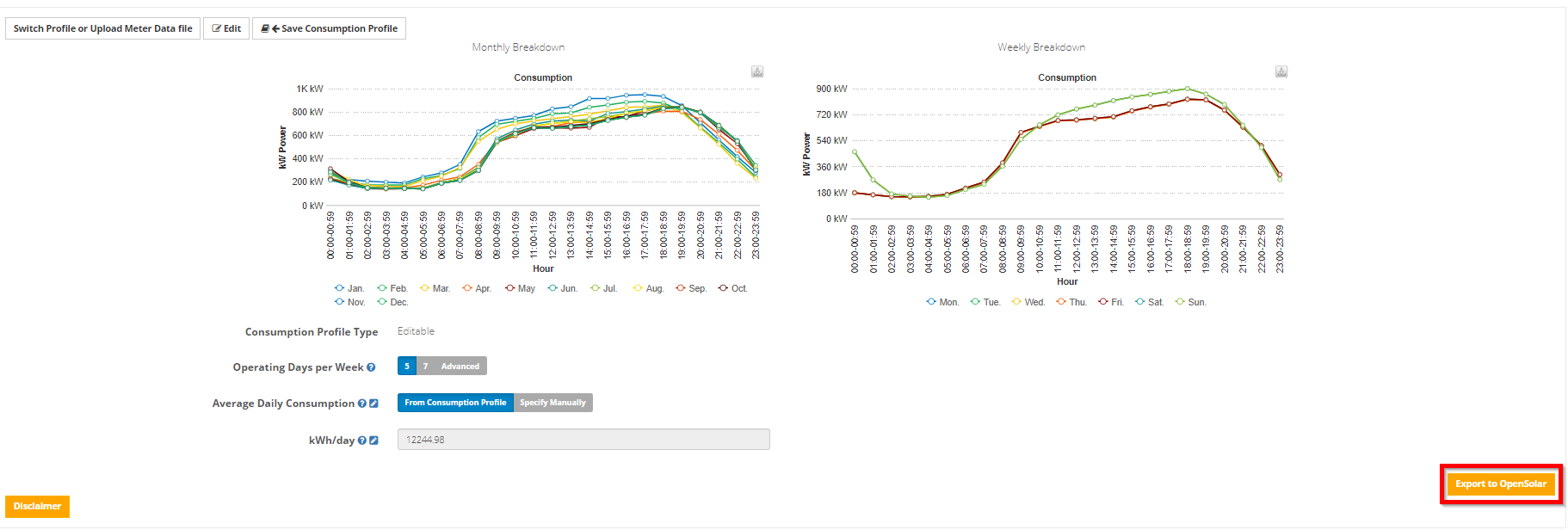
5. Done! Push the data to your OpenSolar project
Just press the Export to OpenSolar button on the bottom right
0 Comments