When entering a bill in PVsell, in particular, entering a Time-of-Use tariff or an Unbundled tariff (including Demand charges), you can adjust the energy Time of Use schedule.
More information:
Make sure you identify the TOU Times that apply. Otherwise all electricity will be charged at Peak rates and your calculations will be incorrect.
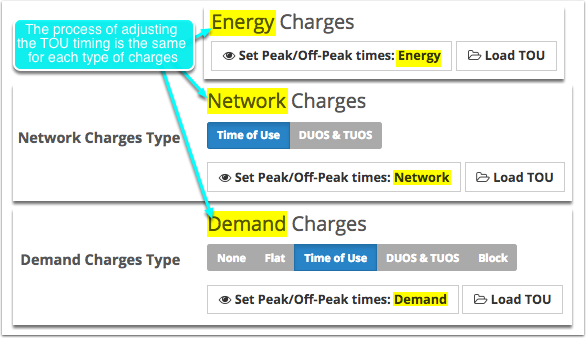
In this article we'll describe how you can adjust Peak/Shoulder/Off-peak times for Energy Charges. The process of specifying the TOU times for Network charges and Demand charges is almost the same.
The slight differences are the following:
- you specify the TOU times for Energy Charges in the 'Energy Charges' section, and the 'Set Peak/Off-Peak times: ...' button contains the word 'Energy';
- the TOU times for Network Charges are specified in the 'Network Charges' section ('Time of Use' network charges type), and the corresponding 'Set Peak/Off-Peak times: ...' button has the word 'Network' in it;
- accordingly, the timing for Demand Charges is adjusted in the 'Demand Charges' section ('Time of Use' demand charges type), and the corresponding button is 'Set Peak/Off-Peak times: Demand'.
1. Specify the Time Of Use times for each type of charges using one of the following methods

1.1.1. Click 'Set Peak/Off-Peak times: Energy'
This button allows you to open the TOU (Time of Use) timing window in order to specify the TOU times – these are the times of day and days of week that are Peak, Shoulder, and Off-Peak.

1.1.2. In the 'Energy TOU Timing' window, select 'Peak'/'Shoulder'/'Off-Peak' for each time
Specify which times of the day on which days of the week are Peak, Shoulder, or Off-Peak by selecting the corresponding time option for each period. By default, all the times on weekdays, Saturday and Sunday are set to 'Peak'.
After specifying the Energy TOU Timing, it's good to save these adjustments to be able to use them anytime later for other projects/customers:
- Click 'Save TOU',
- then enter a name for your TOU library item,
- then click 'Save'.
This way you create a TOU Timing template you can quickly load to the Bill next time you enter a Time-of-Use or an Unbundled Tariff for some of your projects.

1.1.3. If necessary, check 'Auto populate and overwrite Network section' and/or 'Auto populate and overwrite Demand section'
You may wish to check 'Auto populate and overwrite Network section' and/or 'Auto populate and overwrite Demand section'. If you do so, the TOU timing you've set for the Energy charges will be copied across the corresponding TOU times in the Network section and/or Demand section respectively. This will mean you don't have to re-set the timing again for these sections.

1.1.4. Click 'Done' when you've finished adjusting the TOU timing

PVsell comes with TOU Times pre-loaded into its library. The easiest way of specifying TOU timing is loading it from your library.
1.2.1. Click 'Load TOU'
This button allows you to open the TOU (Time of Use) timing window in order to load the TOU times you have in your library – these are the times of day and days of week that are Peak, Shoulder, and Off-Peak.

1.2.2. In the 'Energy TOU Timing' window, click 'Load TOU'

1.2.3. In the window that appears, select the 'TOU Timing' item you wish to load to the project's Bill, and click on the selected one
Here you can choose a TOU timing from your library to use in a project. Entering the name and/or the description values in the respective fields and sorting the TOU timings by the date they were last updated ('Updated At') will help you easily locate the right TOU timing for your project.

1.2.4. If necessary, check 'Auto populate and overwrite Network section' and/or 'Auto populate and overwrite Demand section'

1.2.5. Click 'Load'
Click 'Load' to load the selected item from the library, or click 'Cancel' if you wish to go back and specify the Time of Use times manually. Anyway, you will be able to adjust the times manually even after you load a TOU timing from the library (by just using Option 1 and adjusting the timing you've loaded).

0 Comments